
Dell OpenManage Server Administrator can execute an application when a fault is detected in the hardware, unfortunately there is no built in e-mail support, so this PowerShell can send the email for you without the need for any additional software.
The script will:
- Send an email to a specified recipient.
- Include information about the system from “omreport chasis info”.
- Attach the System Alert Log to the email.

How to install the alert script:
- Download the Dell Alert Script
- Extract it to a folder on your system, e.g. “C:\Script”
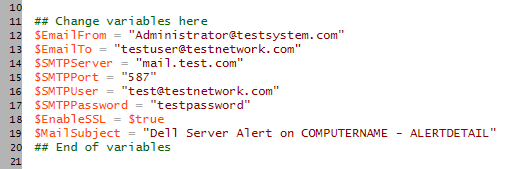
- Edit the variables at the top of the script to configure your email setup
Test Email functionality
Now that you have the script and have configured your SMTP options do the following:
- Open PowerShell.
- Run the script with the “testemail” parameter e.g:
c:\script\OMSA_Alert.ps1 testemail - Check your email, if everything worked you should received a test alert.
Setup email alerts from Dell OpenManage
Once the email function has been tested you can go ahead and setup the script to run from Dell OpenManage:
- Open PowerShell
- Run the script with the “Setup” Parameter e.g:
c:\script\OMSA_Alert.ps1 setup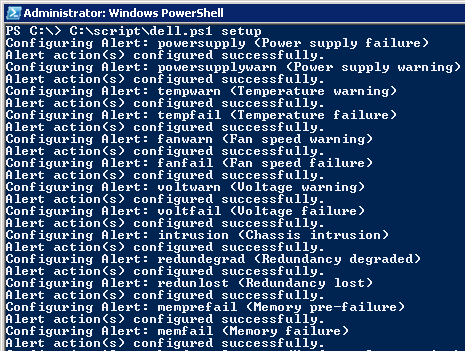
- The script will generate batch files in the directory where you run the script. These batch files are what will be executed by OMSA.
Generate a test alert from your server
Here are some methods to test the script with a real alert:
- Open the server case, this will generate a chassis intrusion alert.
- If you have a dual power supply system, pull the power to one of the supplies and the server should report the power loss.
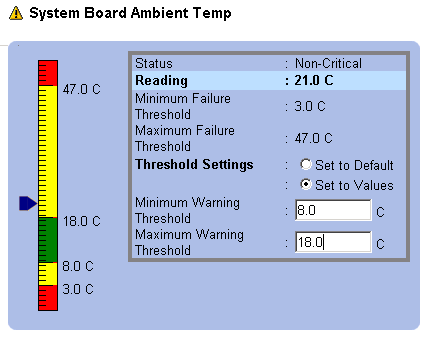
- Trigger a temperature alert:
- In OMSA go to:
System -> Main System Chassis -> Temperatures - Set the Maximum Warning Threshold a couple of degrees lower than the current reading.
- In OMSA go to:

This is an update to a script I originally wrote in 2010 in VBScript. I then wrote a new version in Powershell. I’ve now updated it again to provide compatibility with Dell OpenManage 9.3. The omconfig command produced the error:
Error! No application exists in the specified path.The original VBScript version is included in the download, and the updated PowerShell version.
Bjorn says
Works perfectly with OMSA 6.3 on a PE T110 server.
Thanks very much!!!
Howard Hatcher says
I purchased and installed your Powershell scripts on Server 2008r2. Everything seems to work but no alerts from OpenManaage.
I set the temp alert and a warning is being generated.
The command in the temp warning setup does not send an email if I copy and paste it into PowerShell
C:\Windows\System32\WindowsPowerShell\v1.0\powershell.exe -executionpolicy unrestricted C:\script\DELLAL~1.PS1 email 2
But if I change email 2 to testemail, an email is send to my account.
Please let me know if you need further info.
Thanks
Howard Hatcher says
Thanks for the quick response to my issue.
We found the problem to be the spam filter on gmail was blocking the test email when the warning message was in the subject line.
I remove the spam tag from the emaill address and everything works fine.
Al Scheuring says
This works great. Thank you for doing what Dell should have done.
Mark Giannou says
Great Script!
To enable reporting to multiple emails, just add another mail to variable to the script IE: $Emailto2 and then add another line to add that variable to the email’s to section. IE: $MailMessage.to.add($EmailTo2). And that’s it, just add as many of those as you like for multiple recipients.
Kevin Riley says
What are the parameters when your SMTP server does not require a user/password, i.e. anonymous
Paulie says
Nothing, just leave them empty.
Jim says
For multiple e-mails, you can also just comma separate them, like [email protected], [email protected], [email protected]
John says
On a T310 Dell OpenManage Server Administrator Version 6.5.0
the testemail works – from the powershell line – but none of the events I trigger work..
Paulie says
What version of Powershell do you have installed? I have it running on an R310 and it works fine.
Mike McLachlan says
Hi! I have the same issue as John (OSA 6.5) – works fine from commandline but triggered events dont work – running on Hyper-V R2 with all updates applied.
Paulie says
Do you have Powershell V2 installed though?
Mike McLachlan says
Hi
Thanks for the quick reply! – I wasnt sure so ran:
start /w ocsetup NetFx2-ServerCore
start /w ocsetup MicrosoftWindowsPowerShell
& rebooted.
Still no luck with OpenManage triggering the alert script, but if I copy & paste the alert command line from OpenManage onto the server’s command prompt it works fine.
Mike McLachlan says
Yes 2 is installed
PS C:\Users\Acronym> $PSVersionTable
Name Value
—- —–
CLRVersion 2.0.50727.5448
BuildVersion 6.1.7601.17514
PSVersion 2.0
WSManStackVersion 2.0
PSCompatibleVersions {1.0, 2.0}
SerializationVersion 1.1.0.1
PSRemotingProtocolVersion 2.1
Mike McLachlan says
This is on Hyper-V Server R2 with SP1 btw
Mike McLachlan says
Also tried the VBScript version since we cant get the powershell version to execute, “cscript DellAlert.vbs testemail” errors with:
C:\Program Files (x86)\Dell\SysMgt\scripts\DellAlert.vbs(91, 3) Microsoft VBScript runtime error: ActiveX component can’t create object: ‘CDO.Message’
Mike McLachlan says
Hooray! Resolved the issue on Hyper-V R2
As OMSA runs in 32bit space, 32bit Powershell must also be installed:
Dism /online /enable-feature /featurename:MicrosoftWindowsPowerShell-WOW64
Thanks!
Paulie says
Well done, that is very useful to know!
VBScript version will definatley not work on Hyper-V R2 as CDO is not available and it is the primary reason that I wrote the powershell version.
admin says
If you can’t get the test to work then you have your mail settings wrong. Simple as that really. Are you using the VBScript version or the powershell?
What OS? What mail server?
Igor Lavtsevich says
I’m using powershell version. OS – MS server 2008R2x64. Tried different mail servers: gmail, goDaddy hosted company mail.
I used your directions:
$EmailFrom = “[email protected]”
$EmailTo = “email addr i’m sending to”
$SMTPServer = “smtp.gmail.com”
$SMTPPort = “587”
$SMTPUser = “my login without @gmail.com”
$SMTPPassword = “my password”
$EnableSSL = $true
Please advise if I got something wrong. Thanks.
Friedrich S. says
I have a T310 running with Windows SBS 2008. Test-Email worked, but OMSA did not want to send the alarmmails after setup like explained above. I tried the scriptpath manually which was put into OMSA by the setupscript and received an error Message:
C:\>C:\Windows\system32\WindowsPowerShell\v1.0\powershell.exe -executuinpolicy unrestricted C:\dellalert.ps1 email 3
“Fehlender Ausdruck nach dem unären Operator “-“.
Bei Zeile:1 Zeichen:2
+ -e <<<< xecutionpolicy unrestricted C:\dellalert.ps1 email 3
Obviously that is a syntax error. To make it run, the syntax has to be this way:
C:\Windows\system32\WindowsPowerShell\v1.0\powershell.exe set-executuinpolicy unrestricted; C:\dellalert.ps1 email 3
I did not want to put the right syntax into all the configured alarms in the OMSA manually, so I had to change the script a little. The change has to be done in the function "SetDellAlert" as following.
function SetDellAlert
{
Param($DellEvent, $DellEventDescription, $EventID)
$omsacommand = "omconfig system alertaction event=$DellEvent execappath=`"$powershellpath set-executionpolicy unrestricted; $scriptpath email $EventID`” ”
“Configuring Alert: $DellEvent ($DellEventDescription)”
Invoke-Expression $omsacommand
}
I ran the setup again after the change, and now it works smoothly.
I hope this helps. Thank you for your script anyway, Paulie!
Friedrich S. says
Well, now I made a syntax error myself 😀
*To make it run, the syntax has to be this way:
C:\Windows\system32\WindowsPowerShell\v1.0\powershell.exe set-executionpolicy unrestricted; C:\dellalert.ps1 email 3
Richard says
Using PS version acquired 12/12/2011 on 2K8 r2 enterprise
Test email works
Manaully executing applciation command works (e.g. C:\Windows\System32\WindowsPowerShell\v1.0\powershell.exe -executionpolicy unrestricted C:\Dell\ALERTS~1\DELLAL~1.PS1 email 2) – (does require me to R the script to allow it to run)
But with a ‘lit’ tempertature probe alert as per instructions, I’m not getting any automated alert?
Richard says
Update: What worked for me was to change the script to read:
`”$powershellpath -executionpolicy bypass $scriptpath email $EventID
changign the execution policy allowed emails to be sent.
Paulie says
Richard – that is interesting. I will check out the bypass option and may change it to be the default.
Friedrich – I know that the syntax of the command seems wrong when you see it in OMSA, but when OMSA executes it is ends up being correct. It deals with quotation marks in a very strange way, but does work for most people in the way that the script is written. You can tell by allowing the OMSA process to interact with the desktop. It is the easiest way to troubleshoot it actualy.
Overloaded IT Guy says
Great script! I was trying to do something similar as powershell is easy to me, but I could NOT get the right syntax for the damn OpenManage application execution!
So basically I bought your script just for that, but it is a nice script so I ended up using it anyway….
Good work!
Paulie says
I had the same problem. The syntax for the openmanage command within powershell took me ages to get right. Longer than writing the whole script!
Jason says
I had the exact same situation as Richard and changing the execution policy to bypass worked for me as well.
Jan says
Bought the script half hour ago. And now it works!
Next time I’ll need maybe 5min with testing.
Thank you Paul!
Matt says
I have installe dhte latest powershell script and when i send a test email it works fine but i have unplugged one of the power cords to test the alert and i get no email I have checked on open manage and the warning is there and the snmp is setup can you help
Paulie says
Try changing the powershell execution policy to unrestricted.
Matt says
Sorted
Brian says
The PS script is working, but when I test it by opening the server case and setting off the intrusion alert I only get an “alert” email and not an “intrusion” alert email. What do I need to adjust in the script? Thanks in advance!
Brian says
Disregard my last email…I figured it out – I had altered the email subject “ALERTDETAIL”.
Great script…thanks for the help!!
Brian says
I would like to embed a link to the OMSA site in the body of the alert email. Can somebody share some insight on how to do this in powershell & also in VBScript?
Thanks in advance!!
VirtualGeek says
Thanks, got the download. Had to play around a little with the script for a Dell T110 running OMSA 6.5
Richard’s solution worked for me:
Change:
function SetDellAlert
{
Param($DellEvent, $DellEventDescription, $EventID)
$omsacommand = “omconfig system alertaction event=$DellEvent execappath=`”$powershellpath -executionpolicy unrestricted $scriptpath email $EventID`” ”
“Configuring Alert: $DellEvent ($DellEventDescription)”
Invoke-Expression $omsacommand
}
to:
function SetDellAlert
{
Param($DellEvent, $DellEventDescription, $EventID)
$omsacommand = “omconfig system alertaction event=$DellEvent execappath=`”$powershellpath executionpolicy bypass $scriptpath email $EventID`” ”
“Configuring Alert: $DellEvent ($DellEventDescription)”
Invoke-Expression $omsacommand
}
devin says
i purchased the script about a month ago and it worked. now for some reason it doesnt work when i try to send the test email. now i get this:
Exception calling “Send” with “1” argument(s): “The operation has times out.”
At C:\script\dellemail\powershell\dellalert.ps1:50 Char:18
+ $MailClient.Send<<<< (@MailMessage)
+CategoryInfo :NotSpecified: (:) [], MethodInvocationException
+FullyQualifiedErrorld : DotNetMethodException
NEED HELP!!!
devin says
scratch that! I figured it out.
But the script doesn’t seem to send an alert when you plug a USB drive into the server. It sends an alert for the temperature. But now I am a bit concerned if all the alerts work or not. Any feedback would help. Thanks!
Paulie says
Very simple – there is no alert generated when connecting or disconnecting a USB drive, because Dell Openmanage does not generate one for this event. It’s never been an option as far as I am aware, so not sure why you are expecting it.
devin says
The updated version of openmanage has it as an option.
Paulie says
OK, did not know that, I will check it out. The script will need to be changed to reflect the updated option.
devin says
Thanks! The updated openmanage changes from a blue sidebar to black and has some updated features.
SLF says
OK. I am completed stumped.
If I run c:\script\dellal~1.ps1 email 17 from within powershell (32) or (64) it works fine and I get the email.
If I run C:\Windows\SysWOW64\WindowsPowerShell\v1.0\powershell.exe -executionpolicy Unrestricted C:\script\DELLAL~1.PS1 email 17 from command prompt the email tries to go out but I see an error on the email server of Socket error sending response to DATA. Winsock error 10054 connection reset from the other side.
I do not get it. It works perfect from within powershell but not from command prompt.
Any ideas?
SLF says
Got it working fine with VBScript version. Not sure why it will not work with powershell but it does not matter as long as one way works.
Matt says
I’m new to using powershell, I’m getting this error:
The term ‘d:\script\dellalerts.ps1’ is not recognized as the name of a cmdlet, function, script file, or operable progr
am. Check the spelling of the name, or if a path was included, verify that the path is correct and try again.
At line:1 char:25
+ d:\script\dellalerts.ps1 <<<< testemail
+ CategoryInfo : ObjectNotFound: (d:\script\dellalerts.ps1:String) [], CommandNotFoundException
+ FullyQualifiedErrorId : CommandNotFoundException
SLF says
Matt,
Are you running that within powershell itself and not a command prompt? It looks like that is a command prompt response.
Matt says
Running within powershell:
Windows PowerShell
Copyright (C) 2009 Microsoft Corporation. All rights reserved.
PS C:\Users\Administrator> d:\script\dellalerts.ps1 testemail
The term ‘d:\script\dellalerts.ps1’ is not recognized as the name of a cmdlet, function, script file, or operable progr
am. Check the spelling of the name, or if a path was included, verify that the path is correct and try again.
At line:1 char:25
+ d:\script\dellalerts.ps1 <<<< testemail
+ CategoryInfo : ObjectNotFound: (d:\script\dellalerts.ps1:String) [], CommandNotFoundException
+ FullyQualifiedErrorId : CommandNotFoundException
SLF says
Matt,
Yep. That is within Powershell allright. Try going to the directory and run dellalerts.ps1 testemail.
d:
cd script
dir (make sure the file dellalerts.ps1 is listed)
dellalerts.ps1 testemail
It should run it as long as it is there.
Matt says
I got it working. I pulled a power supply and received the alert. I did not receive a recovery notification, are those not sent?
SLF says
I a actually two new to the process to answer that question. I do not think so though.
MikeB says
Abolutely brilliant. I had been looking at so many different options which would basically give me this. All were either too expensive, too time-consuming, or both. And here I got the answer for £2.95!! I have to say how impressed i am at being able to write this thing so well (at all). I have no idea how you managed to manipulate/code OpenManage to do this, but well done! Really makes me want to master powershell scripting! Once again, “brilliant!”
Paulie says
Mike,
Thank you for your kind words, that is probably the nicest comment I have had to date.
Powershell is great and well worth taking the time to learn. Personally I still find unix shell scripting easier and more powerful, but that may be because I don’t yet know enough about Powershell.
In either case, learning one or the other will help you to understand both, as in my opinion they are very similar. I had to learn almost nothing new to write this script in PowerShell.
Thanks again
Paul
adam says
Paulie,
Purchased the script, got both PS and VB versions working on the respective servers, but is there a way to limit or state how many alerts will be sent out. Our mailboxes got flooded when we had a hard drive failure, great that it works but not so great we received almost 200 emails about the same problem.
Paulie says
I have considered adding some code that limits the amount of emails that are sent out. Unfortunatley the script sends a message everytime Openmanage generates the alert, which for some servers seems to be quite a reasonable rate and for others sends many for the same problem.
Have you tried updating to the latest version of Openmanage? What version are you running right now?
devin says
paulie
have you updated the script so it detects and sends an alert if a usb drive is plugged in?
adam says
Currently running version 6.5.0
Paulie says
I have not updated it yet. I will do it this week, it will only take a few minutes. Just been really busy. I will put the latest version of OpenManage on to one of my machines and check out the new options and then post the required code.
Marvin says
I thought that was already done with this piece of the code:
…
“removableflashmediapresent|Removable flash media present”, “removableflashmediaremoved|Removable flash media removed”, “removableflashmediafail|Removable flash media
…
I am using OM v7.0.0, but I do not get alerts inserting or removing a USB flash drive.
(Using PowerShell script)
adam says
Devin, how did you resolve the error?
Exception calling “Send” with “1? argument(s): “The operation has times out.”
At C:\script\dellemail\powershell\dellalert.ps1:50 Char:18
+ $MailClient.Send<<<< (@MailMessage)
+CategoryInfo :NotSpecified: (:) [], MethodInvocationException
+FullyQualifiedErrorld : DotNetMethodException
devin says
Adam
I honestly don’t remember exactly what I did. But I think it had to do with the smtp port and ssl settings in the script. I hope that helps.
Sean says
Paulie,
This script seems to work great, it’s sent me quite a few alerts from different versions of OMSA.
The other day I had an email from a server running OMSA 5.5.0 to say a disk had failed, but the server was not displaying an orange warning light.
Having looked at OMSA on it and a few of the servers, the ‘alert on console’ is not switched on anymore. Is it possible to have your scipt set this to ‘on’ when it’s run?
Sean.
Graeme says
I am having the same issue as other users when connecting to Gmail’s smtp server using the testemail parameter:
Exception calling “Send” with “1? argument(s): “The operation has times out.”
At C:\script\dellemail\powershell\dellalert.ps1:50 Char:18
+ $MailClient.Send<<<< (@MailMessage)
+CategoryInfo :NotSpecified: (:) [], MethodInvocationException
+FullyQualifiedErrorld : DotNetMethodException
When I use the ISP's email server to relay (port 25, no security required) it works fine. What am I missing? I have followed the instructions for Gmail as laid out and have tried umpteen variations without success.
Anyone have the solutions for this???
Thanks.
Graeme says
Issue solved!!
Password contained a “$” as the first character. Changed the password not to contain a “$” and it worked!
Hope that helps anyone else.
mohammed says
hi, i bought but don’t see the download option.. how and where can i download the file? please send me the detail instruction how to setup.. im newbie to this.. please help
md says
i just made it work..awesome.
i would like if i can figure this out.. How to configure to have more details in the body of the alert email? like date, time etc?
Paulie says
Anyone have a link to the download?
Neil says
Hello, i was wondering if someone could point me in the right direction. I have purchase the download today and have had trouble getting the TESTEMAIL working as suggested.
To troubleshoot i used my laptop and the only way i could get the powershell to send an email was to use the command
PS C:\scripts> .\DellAlert testemail
Any other way no email is sent, how do i resolve this?
Thanks in advance
Neil
Neil says
Update : Got this working perfectly on a Windows 2008 r2 datacentre edition server.
I couldn’t get the TESTEMAIL working using “Gmail or btinternet settings” not sure if they have changed something to stop this. This isn’t a problem for me as i was never going to use these in the real environment scenario away, I was only using “Gmail/btinternet” to test before implementing real time.
On the Windows 2008 server, i created a folder on my system partition called ‘Script’ and place the DellAlert.ps1 in this location.
I then edited the ‘DellAlert.ps1’ using our exchange server details. I then opened Powershell and used the following:
1. “cd C:\Script” this gives me “PS C:\Script>”
2. Type “./DellAlert setup” this configures Dell Open Manage Alerts.
3. To test email function either type “./DellAlert testemail” or like I did remove the cover from the server setting off an intrusion alert.
Thank you Paulie for your time and effort creating this script, well worth the money.
Neil says
@md
The email alert function is immediate so date/time will be the date and time of the email..
devin says
this thing has worked flawlessly up until now on one of my servers. one of the hard drives died and i didnt gt an alert for it. so i ran the testemail and got an email. but when i ran the setup again and tested the script by altering the temp sensor, i get no email. i have no idea whats going on.
Neil says
@devin
I tested this on our server by removing the cover and got an alert straight away but been unable to test with harware issue.
devin says
@neil. ive gotten other alerts for failing hard drives, psu’s etc on other servers. i havent gotten the usb drive insert etc to work yet. im not on site so i cant just pop the side off of this server.
devin says
getting this error when setting up the script on one of my servers. anyone have any ideas?
Error! Unrecognized command value: event=
Configuring Alert: storagesyswarn (Storage System warning)
devin says
Error! Unrecognized command value: event=
Configuring Alert: storagesyswarn (Storage System warning)
devin says
theres actually more but i have no idea why its no showing the whole message in the post.
Chris Kremer CVK Technical says
Dell PowerEdge T410 with OMSA v7.0 Works Great!
Using the powershell version. Follow the instructions exactly!
Worth the $5us that I paid for the script.
I paid for the script and then was send an email link to download the file.
I have also added my own custom error codes to the script for use with other automated batch file processes that I run on my server for backups etc.
Thank you for creating the script Paulie!
Cheers!
Lee says
I’m getting the following error when trying to use the gmail instructions provided. any ideas on how to rectify? I have zero coding skill so please keep that in mind 🙂
Thanks
C:\OpenManage\Script\Powershell\DellAlert.ps1 testemail
Exception calling “Send” with “1” argument(s): “The SMTP server requires a secure connection or the
client was not authenticated. The server response was: 5.5.1 Authentication Required.
Lee says
UPDATE: found the problem. If you have 2 step verification enabled on your gmail account then you need to create and use an application specific password in the script.
Jonah Giacalone says
I have the powershell script able to send the test email from the servers on which I have installed it but it does not get invoked at an alert condition. I lowered the ambient temperature thresholds and OMSA indicated the condition but no email. I have tried the suggestions here such as changing the script to set execution policy to bypass but still NG. I have tested on a PE 2850 and 2950.
thanks
Jonah Giacalone says
VB script works.
kevin pendergast says
Hello, will this script work on OPM version 7.10?
Thanks.
Kevin
Jim K says
I just tried your script yesterday and had a couple of questions, not sure if there is a better way to get answers than posting on this page?
In order to send the test email I had to use the set-executionpolicy to unrestricted. Since I don’t know much about powershell, is this safe? Is this only for this particular instance of running powershell?
Also, I setup the script and tested an email alert with the temperature monitor and it worked fine. Then, one day later, I unplugged the cord from our secondary power supply and nothing happened, i.e. no email was sent. Should this be working? Or, is this something that is not monitored? Thanks.
Chris S says
Love the script. Had absolutely no problems running the PS script in WS2008r2. Well worth the few bucks. Thanks!
Matthew M. says
Great PS script. Just installed on Server 2012 (GUI) and it worked flawlessly. Huge leap over the way you used to have to set up Dell alerts. Excellent work!
Chris Prolls says
Nice simple and fast deploy
customization in powershell is possible
Well done, thank you for your effort
Chris Prolls says
Installed on 2012 Core
Paul Kurr says
At $5 this is great…
Installed the powershell version on HV2012 (Hyper-V V3) – There was a problem sending email through a Google Apps email account – setup was as expected with “other” gmail accounts but received:
Exception calling “Send” with “1? argument(s): “The SMTP server requires a secure connection or the
client was not authenticated. The server response was: 5.5.1 Authentication Required.
– Problem was with having “$” in the password – guess this threw off powershell internally. Changed the account password without a $ contained in it and the test email works fine.
I did need to set-executionpolicy to unrestricted to test/configure.
Thanks!
Paulie says
Thanks for the kind comments everyone. Due to the popularity of this script I am actually working on a new version that will make the procedure easier and procvide more details etc. Very busy at the moment but hope to have it ready by Christmas. New version is written in VB so will not depend on VBScript or Powershell.
Rick says
Just bought the script.. Excellent work… This was a project I had been meaning to get going for a long time. Script works perfectly on 2008R2 on PowerEdge 2900s
George30 says
Hello Paul
I bought your script two days ago. Have you finish new VB script or no?
Happy new year.
Josh says
Hi Paulie,
I’ve been testing the script on a Dell T620 server, running Windows Server 2012 and Dell Openmanage 7.10. The script was able to send out a test email from powershell with the testemail option, but does not seem to be sending out alerts from openmanage. Any ideas? Could there be a firewall rule issue?
Mike says
Hi Paulie,
It’s amazing that Dell doesn’t include this in Openmanage… Great work!
My test emails are working fine, but when I run the Dellalert.ps1 setup command, I’m getting “The term ‘omconfig’ is not recognized…” with no installation successful messages.
It seems I have missed a step. Could you help me out?
Jens Nielsen says
Hi Paulie
Downloaded and installed the ps-script on a W2K8R2 server.
It works great, but there is nothing in the mail body?
Shouldn’t there be?
Regards Jens
Mike says
Hi Paulie,
It seems digging way back in your comments of different set ups, that you mention running your script on a virtual machine in ESX, will not work. It appeared that you mentioned that you would load up a test setup in your empire and see what you could do.
Any news on your setup and tests?
It would be a huge bonus to have your scripts run with our setup.
Mike
eddie says
this script is awesome, i have a small office dell t310 file server, and I have never run a powershell script before, but this was extremely simple to do.
I am shocked it was that easy, worth the money.
Now I wish there was a way to do this for another server I have that uses intel rapid storage manager, so I can get authenticated smtp alerts for the drives in that server.
pete says
WOW!!! WELL worth the few bucks. SO easy and reliable. Thank you!!
Hidden says
Where is the download link? I have purchased and paid with paypal but didn’t get the script?
Jon OBrien says
Hi, I just paid for the script in hopes the new version will work on Windows Server 2012. I have the old version and the testemail function works and I get the message but when running setup I get the following error– (107, 9) (null): The system cannot find the file specified.
I’m hoping the new powershell version works. I didn’t see a download link after paying via paypal, could you please email me the script, the email address hidden in this post if the same as the one I used to pay. Thank you!
Dennis Hartmann says
Hi Paulie,
I’m experiencing the same issue as Mike (first comment). Test email worked fine but the rest was “term unrecognized”. Can you help out here?
Thanks much 🙂
Dennis
Andrew Crane says
Paulie,
Just to let you know that this is working very well in my Server 2008 R2 Powershell environment.
Question: Can I set the $EmailTo variable to work for > 1 address? e.g. “[email protected], [email protected]” ?
Regards, and thanks for this very useful utility.
Pete says
Great script!!!!! Once request I would like to make. Is it possible somehow to flag these email alerts and high priority, so they have a red exclamation mark when they get to the inbox? Sorry, if this has been answered already but I did not see it. If is has, please let me know where I can find the answer. Thanks!
Krunal Patel says
Do we get alerts regarding storage like harddrive crash and harddrive removed and inserted of new harddrive.
Regards,
Krunal
Jon OBrien says
Just curious, how is everyone setting their PowerShell execution policy to get this to run? With the default in Windows Server 2012 set to “restricted” this script won’t work unless you make a change. What is the best way to do it and keep some type of security?
Bryan Sanderson says
Awesome! Worked like a charm on Windows Server 2012 Essentials.
sergio says
Hi, I tried to run the script but I am getting a message when I use a gmail account:
Exception calling “Send” with “1” argument(s): “The SMTP server requires a secure connection or the client was not authenticated. The
server response was: 5.7.0 Must issue a STARTTLS command first. s8sm37443327qag.8 – gsmtp”
At C:\script\Powershell\DellAlert.ps1:50 char:2
+ $MailClient.Send($MailMessage)
+ ~~~~~~~~~~~~~~~~~~~~~~~~~~~~~~
+ CategoryInfo : NotSpecified: (:) [], MethodInvocationException
+ FullyQualifiedErrorId : SmtpException
how do I fix it?
Thank you
Jonathan says
this might be good for the problem I’m looking at with trying to get our servers to send alerts through our mail which is Google Apps
question, our google apps system works like gmail but uses our domain name, will this work for us? if so I’ll do a purchase.
MIchael says
Hello
I bought the script, but on testing it throws an error:
Ausnahme beim Aufrufen von “Send” mit 1 Argument(en): “Fehler beim Senden von Mail.”
Bei C:\prog\dellsmtp2\Powershell\DellAlert.ps1:50 Zeichen:18
+ $MailClient.Send <<<< ($MailMessage)
+ CategoryInfo : NotSpecified: (:) [], MethodInvocationException
+ FullyQualifiedErrorId : DotNetMethodException
Any suggestions what to do?
Thanks
Michael
MIchael says
Oh happy day.
I got the error. It runs without ssl
All right
Thanks
Michael
Paulie says
Well done, glad you figured it out as it saved me the job of translating your error message!
Mark says
hello I purchased your script and I wanted to know if email notification would include details about the error in the subject and/or body of the message? I ask because I did receive the alarm notification correctly, but it was blank
Paulie says
Hi Mark,
No, the email body is supposed to be blank. Although it would be possible to include additional information within it. What sort of thing were you thinking of?
Mark says
Paulie,
Thank you for the follow up, is it possible to include the error info?
If a power supply failed, I wouldn’t be as concerned because we run redundant units, but if a HDD failed then I would want to address it with the highest priority (I run all RAID-10 on the MD1220s without a hotspare to maximize storage).
Mark
Falks says
Hi!
It seems, that your powershell script is not working under powershell 4.0.
I tryed it with Windows Server Hyper-V 2012 R2 (a Core Edition). Dell Open Manage 7.3 (x64).
Verifed with Windows Server Hyper-V 2008 R2 (powershell 2.0). On 2008 R2 it is working.)
I get this error:
+ CategoryInfo: ObjectNotFound (omconfig:String) [], CommandNot FoundExecption
+ FullyQualifiedErrorId: CommndNotFoundExecption
Maybe you culd help me out.
Thanks in advance!
Falks
Daniel says
Running R620s and R810s using OpenManage 7.3.0. Worked like a charm, I just had to allow scripts: Set-ExecutionPolicy Unrestricted
Thanks!
Paulie says
Hi,
I have not played with Powershell 4.0 yet, but should be able to run a VM and figure out the problem. Thank you for letting me know that it does not work.
Pjack says
I have a problem with the script sending multiple emails per alert. I have uninstall old versions on OMSA and reinstall 7.2 and 7.4, but it still sends 9 emails per alert. Any ideas?
Other then that the script works great.
dave says
Hi just purchased and great script, got the powershell script working on a T310 with OMSA 7.4.0 but the email it generates has no body.
Even if I just run
PS C:\scripts> .\DellAlert.ps1 email 18
from powershell on the Server 2012R2 HyperV Core it generates and sends the email with the correct subject but with no body.
Any ideas that could help?
Pawel says
I was looking for a tool like this for a long time. That simple tool does one thing – alerts me, but does it very well. Paulie, I congratulate you the idea and I appreciate your skills. Thank you very much. I tested with success DellAlert.ps1 on these systems:
PE 2950 W2003R2 x64 OMSA 7.1.0 Powershell 2.0
PE 1950 W2008R2 x64 OMSA 6.4.0 Powershell 2.0
PE R210 II W2012R2 OMSA 7.4.0 Poweshell 4.0
PE 2900 W2003R2 x32 OMSA 5.1.0 required update to OMSA 7.4.0 Powershell 2.0
PE R320 W2012 OMSA 7.3.0 Poweshell 3.0
Pawel
Paulie says
Hi Pawel,
Thank you for your kind words, glad you found the script useful! You have certainly tested it extensively!
Paul
Mike says
Howdy,
Just stumbled on this post as we’re looking for a way to have OMSA send us some email alerts when things aren’t working. Is it still current since it’s from a few years ago? We’d be using it with OMSA 7.4 on mostly Windows 2012 R2.
Also, is there a download link somewhere or is it still something I have to buy?
Mike says
You could just install Dell OME. It does alerting and is another free part of the Open Manage system.
R. Mason says
Thanks Mike, We can do that however all of these servers/sites are behind a firewall and require port forwarding (i.e. router access) in order to use the Enterprise version and since these are all small customers with 3rd party IT support it would be a nightmare.
R. Mason says
ok a little clarification for the rest of the world not to have to discover by trial and error.
The powershell script you modify must remain on the server and in the same location you ran if from. So my advise is to put in in a hidden folder buried deep in the server and run it from there. What the script does is modify the Dell OpenManage to execute this script on event failure (hence the reason you must leave it on the server and this is also how it can survive server reboots, etc..). The drawback is anyone can edit this file when they find it (i.e. open Dell OpenManage and look for file that gets executed on alert) and they can see your email credentials in plain text.
$100 to the first person that can create a way to encrypt the password so some other IT guru can’t (using basic hacking skills) work around this and get access to your email credentials. Last think I need is someone sending out email as me to God knows whom…..
R. Mason says
ok the lucky winner was Terry Wilson, who implemented this code
$credential = Get-Credential
$credential.Password | ConvertFrom-SecureString | Set-Content c:\scripts\encrypted_password1.txt
SLOWEB says
Using Power Scripts version on new dell T430 w/ OMSA v8.10 64 bit.
Test email works.
Power supply pull works, get email
Temperature test works, get email
Chassis intrusion open shows up in OMSA log, but does not send email.
Is there a chance that some variable names have changed with v8.1?
Paul Mitchell says
Hello All, trying to get this working on a Windows Server 2008 R2 server. I’ve been sucessfull in making it work with a number of Windows 7 boxes, but this guy is a little locked down (and I’m a Unix admin, not a windows guy). The Powershell script fails with this:
Configuring Alert: powersupply (Power supply failure)
The term ‘omconfig’ is not recognized as the name of a cmdlet, function, script file, or operable program. Check the sp
elling of the name, or if a path was included, verify that the path is correct and try again.
At line:1 char:9
+ omconfig <<<< system alertaction event=powersupply execappath="C:\Windows\System32\WindowsPowerShell\v1.0\powershell
.exe -executionpolicy unrestricted C:\Users\pmitchel\Desktop\DELLEM~1\POWERS~1\DELLAL~1.PS1 email 0"
+ CategoryInfo : ObjectNotFound: (omconfig:String) [], CommandNotFoundException
+ FullyQualifiedErrorId : CommandNotFoundException
the VBS script also fails:
C:\Users\pmitchel\Desktop\dellemail\VBScript\DelAlert.vbs(114,2) (null): The system cannot find the file specified.
All helpis appreciated – it's a great script on the Windows 7 boxes!
Paulie says
I’m guessing you either don’t have openmanage installed or the path to “omconfig” isn’t your PATH environment variable.
Paul Mitchell says
I have OpenManage Essentials installed (I should have mentioned that he scripts work with the testemail argument). I don’t have OpenManage Server Administrator installed o nthis server.
Paulie says
the testemail argument just tests the email configuration is working.
Do you have the “omconfig” executable somewhere on the system? If not is it not going to work.
Paul Mitchell says
Hmm. On the server where it works, I found omconfig in C:\Program Files\Dell\SysMgt\oma\bin. The oma directory (as well as “omsa” and many others) is not on the Windows 8 box. I’m assuming they’re created by the Server Admin install, which I’ll try next.
Borg says
Try Mail Alert Simple Mailer:
https://sourceforge.net/projects/mail-alert/
This tiny app saves your mail password in configuration file as an encrypted string. It is much safer then PowerShell script where mail password is saved in plain text.
Toby says
I’m having issues getting this working. I sent one successful test, then it stopped. Can someone confirm whether these variables look correct?
My variables are:
## Change variables here
$EmailFrom = “**************@gmail.com”
$EmailTo = “**********@yahoo.co.uk”
$SMTPServer = “smtp.gmail.com”
$SMTPPort = “587”
$SMTPUser = “**************”
$SMTPPassword = “************”
$EnableSSL = $true
$MailSubject = “Dell Server Alert on COMPUTERNAME – ALERTDETAIL”
## End of variables
Toby says
Also, just to mention, I have another app on the same server which emails alerts from the same address to the same receiving address, so I don’t believe it’s an account/server issue, as the other application functions fine.
Travis says
Will this work on the current version of OMSA (9.2.1)? I used the PS script on a T-110II before this and it worked fine, tried the same script on this one (same email settings) and nothing happens. Would like to get it working on a new deployment.
Vincent Rees says
Hi Paulie
Great utility which I’ve been using with our servers.
It would appear however some paths have changed in OSMA 9.3…. and therefore the script will not run with error “Error! No application exists in the specified path.”
PS C:\Program Files\Dell\SysMgt> .\DellAlert.ps1 setup
Configuring Alert: powersupply (Power supply failure)
Error! No application exists in the specified path.
Configuring Alert: powersupplywarn (Power supply warning)
Error! No application exists in the specified path.
Configuring Alert: tempwarn (Temperature warning)
Error! No application exists in the specified path.
…etc
Not a major issue as we can just install previous versions (8.5 in this case), but thought I’d let you know.
Many thanks!
Paulie says
Thanks for letting me know, I will update it shortly and post an update when it is done
Travis says
Has this been updated to work with OSMA 9.3 yet?
Paulie says
I’ve just checked it out. It still works in much the same way as before, but it is tricky to work around. The problem is the “omconfig” command checks to see if the program being requested is present before adding it to the config. Because there are parameters on the end of the command it does not accept it (because it cannot find it on the filesystem). Via the web interface it still accepts a command with parameters, but it would take ages to enter them all via the web interface. Bit annoying really.
Paulie says
I’ve posted an updated script which does work with OMSA 9.3. Works in a slightly different way to workaround the problem introduced in the omconfig program from version 9.3
R B Powell says
When you had to edit your script to support OMSA v9.3, can you say what was broken between v9.3 and <v9.3? Was it a script syntax change or an omconfig syntax change?
Paulie says
omconfig syntax change, it does not accept any command with parameters. You can see the differences between the two versions of the script. The new version creates a single line batch file per alert so that omconfig can be satisfied that the specified command exists.
Aaron says
I had to add the path where omreport and omconfig are located so the script could find them.
Example
Invoke-Expression -Command “& ‘C:\Program Files\Dell\SysMgt\oma\bin\omreport.exe’ system alertlog -outc $scriptFolder\AlertLog.txt”
If you don’t have the path, PowerShell doesn’t know what omreport or omconfig is.
DellAlerts says
For those setting up this script using a gmail account, you need to turn on App Passwords (First turn on, 2Factor Authentication). Use the generated App Password in the script for this to work.
Added benefit, even if someone has access to your server and reads the script file (Which you shouldn’t allow untrusted people to access… rant…) They still cannot access your email account.
I setup a new email account just for my log sending.
Paulie says
Thank you for the useful information.
David says
I had to modify line 60 or else I would receive an error due to the fact that my script path included a space in a folder name:
Invoke-Expression -Command ‘omreport system alertlog -outc “$scriptFolder\AlertLog.txt”‘
Paulie says
Thanks for the useful information
David Christian says
Two more changes required to support whitespace in script path:
Line 30:
“$ps -executionpolicy unrestricted -File $scriptpath email $EventID” | Out-File -Encoding ASCII -FilePath “.\$DellEvent.bat”
Line 72:
$scriptPath='”‘ + $(Get-Item $MyInvocation.Mycommand.path).FullName + ‘”‘
Kenny says
Seems to be a bug if SMTPPort is left empty.
Exception setting “Port”: “Specified argument was out of the range of valid values.
Fixed by commenting out line 62 which is redundant due to the conditional at line 45
Rich S. says
This is EXACTLY what I was looking for! You made this so simple and effortless, I’m very impressed. I know this is an older post but it still works in 2020.
I did have to change the PowerShell command to c:\script\DellAlert.ps1 (looks like it was renamed?) but otherwise I just plugged in SMTP settings and voila!
Kudos!
Mubashir Shah says
Script’s Test email works fine but could not receive email from OPEN MANAGE SYSTEM ADMIN’s alerts management.I have set script on Alerts Management page same for test email.
Justin King says
Thank you for your help over the years! I have used your powershell script to email alerts from Dell OMSA. I am using the script update 2-7-2019 for OMSA 9.3. Have you updated it or is there a way to change the script to use TLS 1.2 to get ready for Microsoft’s requirements.
Jamuel says
Hi Paulie,
I’ve recently noticed a new system event that your script seems to ignore, “Drive Bay Intrusion Detected”. Any chance you can update your script to account for it?
Thanks again for all of your help on this over the years!
Cheers,
JPS
David says
For anyone that is still using this script in 2023, I found that the email alerts were not going out, at least not through my Microsoft365 account until I added the following line of code to the top of the SendAlert function to force it to use TLS 1.2:
function SendAlert($Subject)
{
[Net.ServicePointManager]::SecurityProtocol = [Net.SecurityProtocolType]::Tls12
…
David says
For anyone wanting to add the missing Drive Bay Intrusion alert, just add the following to the end of the line that defines $AlertConfig:
, “drivebay|Drive Bay Intrusion”
Les says
I am using OMSA version 11 and get the following response when running the powershell script,
Exception calling “Send” with “1” argument(s): “Failure sending mail.”
At C:\Script\DellAlert.ps1:64 char:2
+ $MailClient.Send($MailMessage)
+ ~~~~~~~~~~~~~~~~~~~~~~~~~~~~~~
+ CategoryInfo : NotSpecified: (:) [], MethodInvocationException
+ FullyQualifiedErrorId : SmtpException
I have added the suggestion fot TLS 1.2
Do you have any ideas?
Thanks
Paulie says
No. Because I have not looked at it in some time, but I will check it out and come back to you.
Stuart Crowley says
After all these years, I still use this script. Just installed it on two servers (several years old) today.
Thank you Paul.
Paulie says
I’m surprised it still works. What version did you use? Vbs or powershell?
RDP says
PowerShell version still working on PowerEdge R730
Paul Eveleigh says
I have a bash version of this which runs on Linux, converted from your powershell, works like a charm. Just relies on having sendemail installed.