
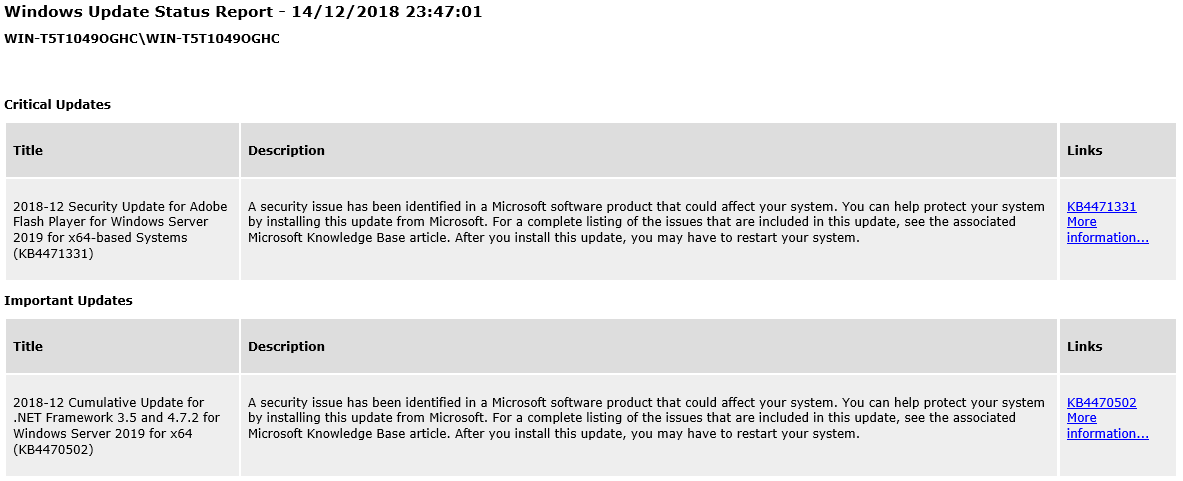
This script, will examine the machine it is running on and send an email report of all the windows updates that are available for installation.
The script sends e-mail notifications providing details of which Windows Updates are available for installation. You can choose which of the five patch levels will trigger an e-mail alert:
- Critical
- Important
- Moderate
- Low
- Unclassified
I would suggest that you at least choose Critical, Important and Unclassified. For some reason Microsoft do not mark all updates with a severity, but the “Unclassified” category seems to contain a lot of what I would consider to be important updates. My thanks to one of the guys that commented for pointing this out.
If there are no outstanding patches at the appropriate alert levels to be installed then the script will quit without sending an e-mail.
The script can be run manually or as a scheduled task. The report includes links to the relevant KB articles and further information made available by Microsoft.
Windows update email notification script configuration
The script is very quick to setup and the most complicated part will likely be your SMTP configuration. At the top of the script you will see a number of variables:
Windows Update Alert Levels
First of all you should configure what severity of Windows update will trigger an email alert. These range from critical to low. Setting each value to 1 or 0 will enable or disable alerts for that category. As mentioned above some updates do not have any severity assigned. These seem to be things like Windows Defender definitions or updates to the malicious software removal tool.
I would recommend at least having Critical, Import and and Unclassified set to 1.
Configure email settings
Next you need to configure your SMTP settings:
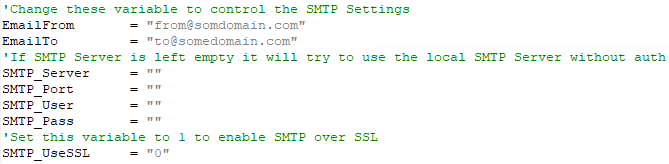
If you leave the SMTP server empty, the script will attempt to use the local machine to send the email. I suspect most people will use an internal or external relay, so configure it as per your environment. You can use SMTP over SSL by setting the SMTP_UseSSL variable to 1.
Testing Windows Updates Notification Emails
- Download the Script:
Windows Update Email Notification Script - Extract the contents to a folder on your server and then setup the variables to suit your preferences and environment
- Test the script
- Go into a command prompt
- Change directory to the location where you saved the script.
- Run:
cscript winupdates.vbs - Check your email
Once you are happy that the script is reporting correctly, setup a Windows Scheduled Task to do this automatically. Assuming an installation directory of “c:\scripts” the scheduled task command should look something like this:
C:\WINDOWS\system32\cscript.exe c:\scripts\winupdates.vbs
The script uses the Windows Update Agent API Com interface, which is quite interesting in itself.
Sample Email Configurations
EmailFrom 		= "[email protected]"
EmailTo 		= "[email protected]"
'If SMTP Server is left empty it will try to use the local SMTP Server without auth
SMTP_Server		= "smtp.office365.com"
SMTP_Port		= "25"
SMTP_User		= "[email protected]"
SMTP_Pass		= "YourOffice365Password"
'Set this variable to 1 to enable SMTP over SSL
SMTP_UseSSL 	= "1"
EmailFrom 		= "[email protected]"
EmailTo 		= "[email protected]"
'If SMTP Server is left empty it will try to use the local SMTP Server without auth
SMTP_Server		= "smtp.gmail.com"
SMTP_Port		= "465"
SMTP_User		= "[email protected]"
SMTP_Pass		= "gmailPassword"
'Set this variable to 1 to enable SMTP over SSL
SMTP_UseSSL 	= "1"
EmailFrom 		= "[email protected]"
EmailTo 		= "[email protected]"
'If SMTP Server is left empty it will try to use the local SMTP Server without auth
SMTP_Server		= "192.168.250.249"
SMTP_Port		= "25"
SMTP_User		= ""
SMTP_Pass		= ""
'Set this variable to 1 to enable SMTP over SSL
SMTP_UseSSL 	= "0"
I originally wrote this script in 2007 and noticed a lot of people were still downloading and using it. So this evening (December 2019), while my wife was at her work Christmas party I decided to see if it still worked and address some of the points made in the comments. I didn’t have a huge amount of time to spend on it, but found time to clean up the code a bit, enhanced the email options and added the functionality to include updates that do not have any severity assigned. It was tested by me on Windows 2008, 2012, 2016 and 2019 and they all worked!
I am glad people are still fining it useful more than 10 years after I wrote the original version!
Andy Butler says
Hi Paul,
Tried using this but the script would either give no output (even though there were needed updates on the server) or would give this following error even though I entered in my sendfrom and sendto email addresses correctly:
c:\scripts\winupdates.vbs(60, 4) CDO.Message.1: The “SendUsing” configuration value is invalid.
Any ideas? I tried on both Server 2003 R2 and Server 2000 SP4. WSUS is configured via GPO on these servers and is able to push out updates, so the update query to my WSUS 3 server appears to be working fine.
Andy Butler says
Ok, I figured it out. The VBScript you have assumes there is a local smtp server to send out the notification. If your using a remote SMTP server, then insert this code in the section that specifies the message objects (objMessage.Subject, etc):
‘==This section provides the configuration information for the remote SMTP server.
‘==Normally you will only change the server name or IP.
objMessage.Configuration.Fields.Item _
(“http://schemas.microsoft.com/cdo/configuration/sendusing”) = 2
‘Name or IP of Remote SMTP Server
objMessage.Configuration.Fields.Item _
(“http://schemas.microsoft.com/cdo/configuration/smtpserver”) = “smtp.myserver.com”
‘Server port (typically 25)
objMessage.Configuration.Fields.Item _
(“http://schemas.microsoft.com/cdo/configuration/smtpserverport”) = 25
objMessage.Configuration.Fields.Update
‘==End remote SMTP server configuration section==
objMessage.Send
Paulie says
Thanks Andy, I will add this into the default script.
Jon Kuhn says
Can you publish the completed script using a remote SMTP server?
Paulie says
I have updated the script to include support for remote SMTP servers.
Edit the variables at the top of the script to specify a server. Could be extended for SMTP auth as well.
Bjorn says
Very nice feature.
I have tested it on Windows Server 2008 as well, and it seems to work OK. I’ll asume this will be the same on Vista
Martin says
Paulie,
When you say “could be extended for SMTP auth as well,” what does it take to use, say, Gmail to send? I don’t see a variable for username and password for SMTP auth.
Tyson says
Paulie, this sounds like a very handy script! I am not script junkie though and I am not sure how to add SMTP authentication so that the server can send e-mail. Would you mind pasting in the code or updating the zip with that?
I would lovvve to be able to use this to keep on top of updates on all my servers, but without SMTP authentication, I can’t send e-mail!
Thanks soo much. I hope you, or someone still checks out this post.
Gagget says
for those who need SMTP authentication …
objMessage.Configuration.Fields.Item (“http://schemas.microsoft.com/cdo/configuration/sendusername”) = RemoteSMTPUser
objMessage.Configuration.Fields.Item (“http://schemas.microsoft.com/cdo/configuration/sendpassword”) = RemoteSMTPPass
objMessage.Configuration.Fields.Item (“http://schemas.microsoft.com/cdo/configuration/smtpauthenticate”) = 1
by the way: … great script *thumbs up*
Paulie says
Gagget,
Thank you for useful addition. Veru useful. Glad you find script useful.
KL says
Is there anyway that we could add a listing of the machine’s IP address in the header along beside the computer name?
Have been tinkering with it, but no luck thus far.
Paulie says
Should be pretty easy using something like this:
http://www.codeproject.com/KB/vbscript/ipaddress.aspx
Give it a try, if you get stuck I will post an example.
David says
Is there anyway to modify this so it wont alert you about hidden updates?
Michael says
I am trying to get this work with gmail. Would it be possible to provide a working example I could use?
Shane says
I am trying to get this working as well. Does the cdo webpage still work (Microsoft)? When I try to go to the URL, I get a page not found.
Paulie says
Still working for me, what problem are you having when you try to use it?
Philipp says
Works like a charm on Server 2008 R2 – very helpful. thanks!
Adriaan Bredero says
Dear Sir/Madam,
Script sounds nice, can you tell me where i can download the script ? is theire any download link ?
I looking forward to hear from you, thanks and have a nice day.
Best regards,
Adriaan Bredero
Paulie says
Hi,
It is at:
http://tachytelic.net/wp-content/winupdates.zip
I will make the download link more obvious in the post, it is well hidden!
Adriaan Bredero says
Hi Paulie,
Thanks for the link, i have downloaded the file but i have another question.
Is it reguired that i fill in a remote SMTP server ? when i leave the SMTP server empty. (will the server try to send the e-mail by himself ?)
Does the script also works with Windows Server 2003 ? or only with the 2008 versions and higher ?
I looking forward to hear from you, thanks and have a nice day.
Best regards,
Adriaan Bredero
Adriaan Bredero says
Hi Paulie,
I have added the SMTP credentials to the script, but i get an error.
Is it possible that you can change the script so the auth SMTP credentials can be filled in, in the script ? now i can only fill in the SMTP address but not the loginname and password. (reguired to send e-mail)
I looking forward to hear from you, thanks.
Best regards,
Adriaan Bredero
Graham says
HI Paul
I find this script extremely useful in its purpose. Well done.
However, I have installed it (and modified to fit my personal SMTP server API object instead of the one you have included) but I notice there is a problem that maybe you might have an answer for.
I noticed that with a lot of the updates the ‘MsrcSeverity’ value was not being filled and therefore the script was not performing correctly (for readers, the value of this ‘field’ contains the severity “Critical”, “Important” etc and is need to filter out and report whats what). I did a number of tests on various updates by using the wscript.echo command to output the value and quite often (but not always) it was blank. It took a long time to figure this out by involving using the script to list all patches and updates, even ones that have already been installed (removing Isinstalled from updateSearcher.Search(“IsInstalled=0″ ) and adding WScript.Echo update.Title & ” ‘”&update.MsrcSeverity&”‘” for everyone found to show their title and severity. As a consequence I have slightly mod’ed the script to assume all ‘blank’ severities (MsrcSeverity) as important. Im no specialist and made the following change:
severity=”‘”&update.MsrcSeverity&”‘”
Select Case severity
Case “‘Critical'”
CriticalCount = Criticalcount+1
CriticalHTML = CriticalHTML & MakeHTMLLine(update)
Case “‘Important'”
ImportantCount = Importantcount + 1
ImportantHTML = ImportantHTML & MakeHTMLLine(update)
‘ Next added to incorporate missing severity report (seems common) and default assume them to IMPORTANT
Case “””
ImportantCount = Importantcount + 1
ImportantHTML = ImportantHTML & MakeHTMLLine(update)
.
.
.
(note the intro of the variable ‘severity’ and the inclusion of quotes around the CASE tests)
I dont know why only some updates have the MsrcSeverity value filling because you would think they all do (assuming this is what drives the Windows Update screen too). An example of an update that has it missing is the IMPORTANT update for Windows Defender definitions (but there are many other ‘patches’ too)
Do you have any idea as to what is happening or a better way of handling this?
Mark Vinten says
You are right to make the blank ones appear as important because they may well be so it’s safer to include them. You can do that better by making the Case “Important” because a Case Else and moving the section to the bottom of the case list so that anything not understood is caught.
I just tried this script on a Windows Server 2012 R2 and it worked great. I may even translate the principles into a c# program that I have for monitoring disk space, etc. as it’s that useful a script 🙂
Paulie says
I am glad that you approve of code that I wrote seven years ago! I can hardly remember the code but I am very pleased, and surprised to hear that it still works in Windows Server 2012 r2!
I’d be worried to look at the code again now, normally when I look at anything I wrote over a year ago it makes me shudder, but I do remember being quite pleased with this one in particular.
Luan Nguyen says
Thank you very much Paulie.
I modified it to categorize MsrcSeverity to Important when it’s blank and use Gmail SMTP with authentication.
Here it is: http://luan-itworld.blogspot.com/2014/07/windows-update-automatic-e-mail.html
RDK says
Paulie…..We are in the process of moving from Windows Server 2003 to Windows Server 2008. We had several scripts using CDO to send e-mails which on our new 2008 server do not work. The new machine has Office 2010 installed.
Did you do anything special to get CDO installed and running on the 2008 server?
Thanks…..RDK
Paulie says
Is your server 2008 64-bit?
RDK says
Yes, both 64 bit and 2008R2….RDK
Paulie says
You need to run your scripts in 32-bit mode and the will work again, take a look in:
C:\Windows\SysWOW64\cscript.exe
C:\Windows\SysWOW64\wscript.exe
RDK says
Paulie…Thanks for the information, but the decision seems to be to rewrite the scripts in Powershell. We’ll see how that goes….RDK
Alex says
Hey great job with the script can you think of anyway to make it so we’d receive an email when the updates are finished installing like bringing on a new Domain controller and waiting for it to finish patching can take hours.
Jeremiah says
Years later and this thing is still rockin’. Sincere thanks and appreciation!
skal says
Kudos on a long-life good tool.
Someone once asked about not listing hidden updates, and I needed that myself, a quick web search gave me the solution: add “and IsHidden=0” to the search query:
Set searchResult = updateSearcher.Search("IsInstalled=0 and Type='Software'")becomes
Set searchResult = updateSearcher.Search("IsInstalled=0 and Type='Software' and IsHidden=0")Dante Labon says
This script is fantastic!! I do have a question though. I am in charge of maintaining 100 computers, and I cannot possibly sort through 100 emails everyday. Is there any way to add a piece to the script that would only send the email if there are updates for the computer? That would be awesome.
Thanks…DL
Paulie says
I believe it already does that, for example if you set AlertCritical to 1 and all of the others to 0, it will only email you regarding that particular computer when there are critical updates. If there are none, then it won’t send the email.
I could be wrong, it’s been many years since I last looked at it,but I am pretty sure that is how it works.
Dante Labon says
Oh. Ok. I didn’t notice that yet. Haven’t put it on any other computers yet. But, this script is really going to make my life a little easier!! Thank you very much for it.
sebus says
Very nice indeed!
Dave Wain says
August 2018 and this script is still relevant. Much appreciated.
If you are still monitoring these comments the script isn’t working on W2012. There are updates apending (bright yellow notification on login screen tells me so) and I have set all alert types to 1.
It is working on a W2008R2 instance and I tried c:\windows\sysWOW64\cscript specifically to no avail.
Any ideas?
Paulie says
Are you sure the updates that are pending are windows updates abs not updates to other Microsoft products?
Dave Wain says
Hey Paulie, good to hear from you.
On RDS Server 2012, “Update for Windows Server 2012 R2 (KB3118401) & (KB3162835)” are both downloaded and pending install.
Paulie says
Hi All,
Been a long time coming but I noticed a lot of people were still using this script I wrote back in 2007. I was at a loose end tonight while my wife was at a work party, so I have updated the script to address most of the questions you have left in the comments.
The SMTP options have been enhanced.
Updates with no severity assigned have an option to be included in the email report.
I cleaned up the code a bit and fixed a couple of issues.
Updated the blog post with a bit more guidance.
Have a great Christmas! 😀
Dave Wain says
You are too kind 🙂 Have a wonderful and safe Christmas my friend.
Brian Richardson says
Getting an error message “Transport failed to connect to the server”. Any suggestions?
Paulie says
It sounds like you have not configured valid SMTP server settings.
John bales says
Trying to set this up in an environment with all the servers allowed to relay without authentication through the Exchange server. Only on 3 servers (2012 R2 and 2016), the script works but it is unable to send the message. Have you seen this error before?
Failed to send email, the error was:
The message could not be sent to the SMTP server. The transport error code was 0x80040217. The server response was not available
coque iphone 79 says
Below is a contact we gotten merely now: Mr. Nesson
coque iphone 79 https://www.saxy.fr/sitemap.xml
Peter Geremia says
I tried to use the script. I am sending email to my postfix server.
When the email sends I get this message:
The server rejected one or more recipient addresses. The server response was: 550 Invalid HELO string (WINSERVER)
Is there a way to specify the HELO message. I think it needs to be the full FQDN.
Erik says
Marry X-Mas in 2019 – yes the script is useful – thanks a lot for this.
Erik says
My local mail Server don’t want an authentication, so I left username and PW empty.
To get this working, I had to change two lines in the Mail function – here my code – maybe it’s useful for someone:
if SMTP_Server “” Then
With Fields
.Item (“http://schemas.microsoft.com/cdo/configuration/sendusing”) = 2
.Item (“http://schemas.microsoft.com/cdo/configuration/smtpserver”) = SMTP_Server
.Item (“http://schemas.microsoft.com/cdo/configuration/smtpserverport”) = SMTP_Port
.Item (“http://schemas.microsoft.com/cdo/configuration/smtpauthenticate”) = 0
if SMTP_User “” then
.Item (“http://schemas.microsoft.com/cdo/configuration/smtpauthenticate”) = 1
.Item (“http://schemas.microsoft.com/cdo/configuration/sendusername”) = SMTP_User
.Item (“http://schemas.microsoft.com/cdo/configuration/sendpassword”) = SMTP_Pass
end if
if SMTP_UseSSL = “1” then
.Item(“http://schemas.microsoft.com/cdo/configuration/smtpusessl”) = True
end If
.Update
End With
Set objMessage.Configuration = objConfig
end if
Paulie says
Thanks for posting, I need to update the original. I think someone else reported the same a while back. Glad it is useful to you. Happy New Year!
sharath says
Hi ,
Iam configuring from gmail and getting below error.
Checking for available updates…
2 Updates Found
Failed to send email, the error was:
The message could not be sent to the SMTP server. The transport error code was 0
x80040217. The server response was not available
Can any one help me to resolve this issue.
thanks! in advance.
Erik says
Hi,
is there a possibility to exclude some updates from notification. I need to setup the level to “Unclassified” to see the monthly role up updates, but this will also bother me stupid silverlight updates, which I dont have installed on my windows 2019 server.
Any idea?
Thanks
Elias Haisch says
Add
.Item(“http://schemas.microsoft.com/cdo/configuration/sendtls”) = True
to be able to use starttls,
.Item(“http://schemas.microsoft.com/cdo/configuration/smtpusessl”)
has to be false then
Greetings
Mark says
Hi I have configured this script to use my gmail credentials. When I run the script from a command prompt, I get this error. Does this occur because there are 0 updates? Or could I be doing something else wrong? Thanks!
Checking for available updates…
0 Updates Found
c:\Users\Mark\Downloads\WinUpdates.vbs(150, 2) Microsoft VBScript runtime error: File not found
Ondra says
Hi, if i try run the script, it just return “Checking for available updates…” and in like 15 sec it ends. And nothing happened. Can you please help me?
Mani says
Hi.
The below PowerShell script sends e-mail notifications providing details of which Windows Updates are available for installation and also reports on recent updates from the last 30 days.
PowerShell Script # Run as administrator
# Define the date range for recent updates (past 30 days)
$RecentDate = (Get-Date).AddDays(-30)
# Retrieve installed updates from the past 30 days
$InstalledUpdates = Get-WinEvent -LogName System | Where-Object {
$_.Id -eq 19 -and $_.TimeCreated -ge $RecentDate
} | Select-Object @{Name=”Title”;Expression={$_.Message -replace “^.*\: “}}, TimeCreated
$UpdateSession = New-Object -ComObject Microsoft.Update.Session
$UpdateSearcher = $UpdateSession.CreateupdateSearcher()
$Updates = @($UpdateSearcher.Search(“IsHidden=0 and IsInstalled=0 or IsInstalled=0 and Type=’Software'”).Updates)
$UpdateDetails = $Updates | ForEach-Object {
$Category = if ($_.IsSecurity) {
switch ($_.MsrcSeverity) {
“Critical” { “Security – Critical” }
“Important” { “Security – Important” }
“Moderate” { “Security – Moderate” }
“Low” { “Security – Low” }
default { “Security – Unclassified” }
}
} else {
“Other”
}
$KBLinks = ($_.KBArticleIDs | ForEach-Object {
if ($_ -match ‘^\d+$’) {
“Search KB$_”
} else {
“N/A”
}
}) -join “, ”
@{
Title = $_.Title
KBArticleID = $KBLinks
SizeMB = “{0:N2}” -f ($_.MaxDownloadSize / 1MB)
Category = $Category
}
}
# Formatting the email body
$EmailBody = “Available Windows Updates”
if ($UpdateDetails.Count -eq 0) {
$EmailBody += “Not Available”
} else {
$EmailBody += “TitleKB Article IDSize (MB)Category”
$UpdateDetails | ForEach-Object {
$EmailBody += “$($_.Title)$($_.KBArticleID)$($_.SizeMB)$($_.Category)”
}
$EmailBody += “”
}
# Add recent updates information
$EmailBody += “Recent Updates Installed in the Last 30 Days”
if ($InstalledUpdates.Count -eq 0) {
$EmailBody += “No updates installed in the last 30 days.”
} else {
$EmailBody += “TitleDate Installed”
$InstalledUpdates | ForEach-Object {
$EmailBody += “$($_.Title)$($_.TimeCreated)”
}
$EmailBody += “”
}
# Email parameters
$SMTPServer = “smtp.gmail.com”
$SMTPPort = 587
$Username = “”
$Password = “”
$From = “”
$To = “”
$Subject = “Available Windows Updates”
$Body = $EmailBody
# Sending the email
Send-MailMessage -From $From -To $To -Subject $Subject -Body $Body -BodyAsHtml -SmtpServer $SMTPServer -Port $SMTPPort -UseSsl -Credential (New-Object PSCredential ($Username, (ConvertTo-SecureString $Password -AsPlainText -Force)))
Ondra says
Thank you for the script. But the output is just plain text with bad unicode. If there is smoe formating, it will be awesome.
Mani says
@Ondra.
Hi,
Thank you for your feedback! I am aware of the issues with the Unicode and formatting in the output. This is just a sample that I made workable with PowerShell. I am currently working on improving it, so I will post the updated version here soon.
Ondra says
That will be awesome. I will be waiting for that. Thank you.
Mani says
@Ondra,
Hi,
This PowerShell script is designed to automate the process of gathering and reporting on Windows updates and system information. It retrieves details about available Windows updates, recent update history, and key system metrics such as system uptime, available disk space, and hard disk type. The script then formats this data into a well-organized HTML email report, which is sent to a specified recipient.
#Poweshell_Script
# Get System Uptime in Days, Hours, and Minutes
$SystemUptime = (Get-WmiObject Win32_OperatingSystem).LastBootUpTime
$SystemUptime = [System.Management.ManagementDateTimeConverter]::ToDateTime($SystemUptime)
$SystemUptimeSpan = New-TimeSpan -Start $SystemUptime -End (Get-Date)
$SystemUptimeFormatted = “{0} Days, {1} Hours, {2} Minutes” -f $SystemUptimeSpan.Days, $SystemUptimeSpan.Hours, $SystemUptimeSpan.Minutes
$LastRebootTime = $SystemUptime
# Get System Information
$SystemName = (Get-WmiObject Win32_ComputerSystem).Name
$AvailableSpaceC = [math]::round((Get-PSDrive C).Free/1GB, 2)
$SystemRAM = [math]::round((Get-WmiObject Win32_ComputerSystem).TotalPhysicalMemory / 1GB, 2)
# Get Hard Disk Type
$DiskDrive = Get-PhysicalDisk | Select-Object -ExpandProperty MediaType
$HardDiskType = if ($DiskDrive -eq ‘SSD’) { “SSD” } else { “HDD” }
# Get Available Windows Updates (Exclude Windows Apps and Drivers)
$UpdateSession = New-Object -ComObject Microsoft.Update.Session
$UpdateSearcher = $UpdateSession.CreateupdateSearcher()
$Updates = @($UpdateSearcher.Search(“IsHidden=0 and IsInstalled=0”).Updates)
$CategorizedUpdates = @()
foreach ($Update in $Updates) {
if ($Update.Title -notmatch “Windows Apps” -and $Update.Title -notmatch “Driver”) {
$UpdateSize = [math]::round($Update.MaxDownloadSize/1MB, 2)
$KBArticleLink = if ($Update.KBArticleIDs) { “KB$($Update.KBArticleIDs[0])” } else { “N/A” }
if ($Update.Title -match “Security” -and $Update.MsrcSeverity -eq “Critical”) {
$PatchLevel = “Critical”
} elseif ($Update.MsrcSeverity -eq “Important”) {
$PatchLevel = “Important”
} else {
$PatchLevel = “Unclassified”
}
$CategorizedUpdates += [PSCustomObject]@{
Title = $Update.Title
KBArticleID = $KBArticleLink
SizeMB = if ($UpdateSize) { $UpdateSize } else { “N/A” }
PatchLevel = $PatchLevel
}
}
}
# Get Recent Installed Updates History (Exclude Windows Apps and Drivers)
$RecentDate = (Get-Date).AddDays(-30)
$RecentUpdates = Get-WUHistory | Where-Object { $_.Date -ge $RecentDate } |
Select-Object Date, Title, KB, MsrcSeverity
$RecentUpdatesCategorized = $RecentUpdates | ForEach-Object {
$KBArticleLink = if ($_.KB) { “KB$($_.KB)” } else { “N/A” }
[PSCustomObject]@{
Title = $_.Title
Date = $_.Date
PatchLevel = if ($_.MsrcSeverity) { $_.MsrcSeverity } else { “Unclassified” }
KBArticleID = $KBArticleLink
}
}
# Build the Email Body in HTML
$EmailBody = @”
body { font-family: Arial, sans-serif; font-size: 12px; line-height: 1.6; background-color: #f4f4f9; color: #333; }
table { width: 100%; border-collapse: collapse; margin-bottom: 20px; background-color: #fff; }
th, td { padding: 10px; text-align: left; border-bottom: 1px solid #ddd; }
th { background-color: #2a3f54; color: #fff; }
td { word-wrap: break-word; }
.header { background-color: #1abb9c; padding: 10px; color: white; font-size: 18px; text-align: center; }
${SystemName}: Windows Update Report
System Information
System Name$SystemName
System Uptime$SystemUptimeFormatted
Last Reboot Time$LastRebootTime
Available Space on C Drive$AvailableSpaceC GB
System RAM$SystemRAM GB
Hard Disk Type$HardDiskType
Available Updates
TitleKB Article IDSize (MB)Patch Level
“@
foreach ($Update in $CategorizedUpdates) {
$EmailBody += “$($Update.Title)$($Update.KBArticleID)$($Update.SizeMB)$($Update.PatchLevel)”
}
$EmailBody += @”
Recent Updates Installed History
DateTitleKB Article IDPatch Level
“@
foreach ($Update in $RecentUpdatesCategorized) {
$EmailBody += “$($Update.Date)$($Update.Title)$($Update.KBArticleID)$($Update.PatchLevel)”
}
$EmailBody += @”
“@
# Email parameters
$SMTPServer = “smtp.gmail.com”
$SMTPPort = 587
$Username = “”
$Password = ” # Replace with your actual password
$From = $Username
$To = “”
$Subject = “${SystemName}: Available Windows Updates Report – $(Get-Date -Format ‘MM/dd/yyyy’)”
$Body = $EmailBody
# Sending the email
Send-MailMessage -From $From -To $To -Subject $Subject -Body $Body -BodyAsHtml -SmtpServer $SMTPServer -Port $SMTPPort -UseSsl -Credential (New-Object PSCredential ($Username, (ConvertTo-SecureString $Password -AsPlainText -Force)))